
2020-2024 Ford Police Interceptor Utility ATO - Auto Dash Display Screen Kit Installation Instructions

Updated: Apr 20
ATO - Auto LLC
April 2026
Table of Contents
1. Interior Trim & Dash Disassembly
Most of the dash disassembly involves a simple plastic retainer clip removal. Be careful to avoid breaking any plastic retainer clips and aware of wires attached to the center bezel during removal and reinstallation. A 7mm Socket and Wrench are required, not included, to remove the upper dash tray and bolt the Dash Display Screen in. A plastic trim removal tool may aid in removal of trim components but is not necessary. If you prefer an installation video, click here.
1a. 2020-2024 Ford Police Interceptor Utility
Using a 7mm socket on a wrench, fully remove the 2, 7mm bolts holding the upper dash tray in place.
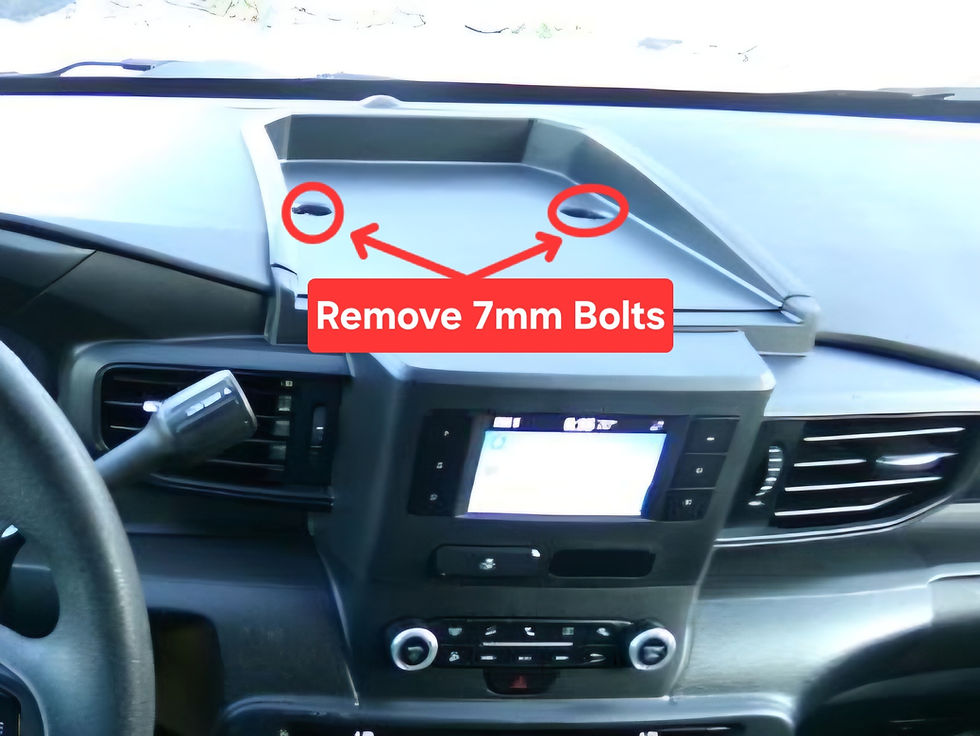
Lift around the upper dash tray with the help of a plastic pry tool to pop the 5 clips out without marring the plastic. 3 clips are located towards the center console, 2 more are located toward the windshield, circled in blue below.

Lift and release the clips securing the trim above the ignition cylinder, use a pry tool to aid in removal, circled in orange.

Close both the driver and passenger side vents using the dial controls, the dial should look like the dial circled in green.

Pull the center stack toward the rear of the vehicle, it is held on firmly by several plastic clips. Use a plastic pry tool to aid in removal, use caution to avoid breaking clips and be aware of the connection harnesses to the center stack.

Press the brake, and without starting the vehicle, turn the ignition to "Run," then shift into Driven to allow room to fully remove the center stack and vent assembly. Once removed, place the vehicle back into park and shut the vehicle off.
Release the connector locking tabs and remove any connections.
Open the glovebox and empty the contents.

Depress both side locking tabs to drop the glovebox all the way open and release from the dampener assembly.

Proceed to section 2 to install the Dash Display Screen Kit.
2. Installation of Dash Display Screen Kit
The installation for the Base model and Lock-On Grid models are nearly identical, but the Lock-On Grid allows for installation of additional powered accessories. During the Dash Display Screen wire routing process, the optional additional power wires for Lock-On Grid accessories should be ran.
2a. Dash Display Kit Screen Wiring
Route the USB power cord for the Dash Display Screen through the top of the dash using any one of the holes circled in red.

Run the USB power cord, and any power cords for the Lock-On Grid, toward the passenger side glovebox.

Reach up and through the glovebox cavity to pull the USB wire(s) down toward the passenger floor pan.

With the USB power cord(s) routed down to the passenger floor, continue to route them toward the center console area, tuck the wire once you are happy with your placement.

Plug into a power source, utilize either the OEM USB-A outlet or 12v Cig Plug using the included Anker 320 Car Charger to provide USB-A slots. *FORScan may be necessary to enable the proper shutdown timer for the 12v Cig Plug "Powerpoint," reference section 3 for more information.

With the wire routed and powered, secure any excess wire, but leave enough excess to easily remove the dash display if ever necessary.
Reinstall the glovebox by reattaching the dampener and pushing the glovebox fully closed to ensure the locking tabs engage.
Reconnect the center stack and vent assemble to its connections and push it back into its clipped position. Reverse the process of removal steps for reinstallation.
Reconnect the trim above the ignition cylinder.
Feed slight excess wire for the Dash Display Screen into the dash space and seat the unit in place. Use the 2, 7mm OEM bolts to secure the Dash Display in place. Tap on the outside corners of the unit periodically during bolt tightening to aid in firm and proper seating. Bolts should be tight, they will not turn anymore once fully tightened, leaving a seamless finish that looks nearly OEM.

Test for functionality and connect your device.
If you are utilizing the Lock-On Grid model, go to section 2b for accessory mounting instructions. If you have a base model or no accessories for the Lock-On Grid, then your installation is now complete.
2b. Optional Lock-On Grid Accessory Wiring
Use the included M4 M-LOK hardware to secure any existing or new AMPS compatible mount.
Use the included 2.5mm Allen Key to securely tighten the M-LOK hardware, securing any existing AMPS compatible accessory onto the Lock-On Grid.

3. FORScan
FORScan is available to download for free. You may obtain a 2 Month Extended License, no purchase required, allowing you to change several settings within your Ford or Mazda vehicle. FORScan is available for Windows and connects via USB to OBDII Cord into your vehicle. The entry level cord is an ELM327 that costs less than $30. For enthusiasts looking for a more heavy duty, reliable connection, the OBDLink EX is available for $70 on Amazon.
Download the latest version of FORScan to your computer
Get your free Extended License to obtain a free 2 month activation code
Launch the downloaded FORScan Setup & follow prompts to complete installation of the application
Click “About” and enter your activation code(Code may take up to 48 hours to send to you initially)


3b. Connecting Vehicle to FORScan
Insert the ELM327 or OBDLink EX into the USB Slot on your Windows Laptop
Plug into the OBDII Port of your vehicle and turn the ignition to Accessory(“Run” without turning the engine on)
Open FORScan, the application should automatically connect to the vehicle
Manual Connect if needed by clicking “Connect to vehicle”
Allow modules to be read, flip the MS/HS CAN Switch when prompted to complete all module scanning
Click “Configuration and Programming”
3c. Coding Options for FORScan *NOT YET AVAILABLE*
*Always take a picture and save the original coding of the vehicle to a file on your computer. You can easily alter critical vehicle functions with FORScan, so having a backup of the “tried and true” original codes that were on the vehicle is crucial.
x's are placeholders and should not be changed manually, only change the character with a * in its place, everything else will auto populate upon hitting write!
AUX Input-Media Button, Activates “Line-in”:
Module | Line Address | First 4 | Second 4 | Last 4 | Change * |
FCDIM As-Built | 7A5-01-01 | xxxx | *xxx | xxxx | 1 = AUX Enabled |
Powerpoint Timeout determines the shutdown time of the 12v Cigarette outlets after the key is turned off:
Module | Line Address | First 4 | Second 4 | Last 4 | Change * |
BCM As-Built | 726-39-01 | xxxx | x*xx | xxxx | 1 = Timeout Enabled(Default) 0 = Always On(Stays on 24/7, can deplete battery) |
BCM As-Built | 726-39-01 | 1194 | xxxx | xxxx | 1194 1hr 15min (Default) |
BCM As-Built | 726-39-01 | 0001 | xxxx | xxxx | 0001 Shut off after 1 Second(Recommended) |
3d. Useful Tips
Note: FORScan modifications are done at your own risk. ATO - Auto LLC assumes no responsibility for misuse and/or incorrect coding.
4. General Product Information
For any questions or issues that are not listed please call 715-240-4070 or email admin@ato-auto.com. Due to an increase in email and call volume, please allow up to 48 hours for a response.
4a. Common Questions
Is there a physical "Off" button?
There is a physical Off button on the top of the display. The display also has a digital Off button.
Is this compatible with the RubiGrid® from Bulletpoint Mounting Solutions?
The included Lock-On Grid is compatible with the existing accessories for the RubiGrid® system as it uses the same AMPS compatible layout. The RubiGrid® mount itself is not be transferred, but rather the accessories to the Lock-On Grid using the included M-Lok hardware.
Can I switch the boot logo image?
Yes, switching the image is simple using the EVELINK app available in Google Play store and Apple App store.
Download and install EveLink
Navigate to the "Settings" page of your ATO Display and press "Clear Connections"
Navigate back to the home screen of the ATO Display and press "Super Link"
Open EveLink on your phone, Agree to the Service & Privacy Policy. Press "Add" to pair a device, ensure "Wi-Fi Direct" is checked, & tap the blue message "FAILED TO OBTAIN NEARBY DEVICE PERMISSION" to give EveLink permission to connect to nearby devices.
Click on the "EVELINK" device once it appears
Click "Settings" on the EveLink app, press "Boot Logo" and then select the image you'd like to use.
Once you have added your new Boot Logo, navigate back to Android Auto or Apple CarPlay on the ATO Display, access your Bluetooth devices on your phone and reconnect to the ATO Display. You may uninstall the Evelink app as it is no longer needed.
4b. Troubleshooting
Few issues have been reported outside of users being unsure of installation procedures. Issues that have been noted and the current fixes are as follows:
Android Auto music doesn't play automatically when you start your vehicle:
Using Android Auto on the Dash Display Screen, go to settings and select "Start music automatically." This will allow your music to play automatically anytime your Android Auto connects. There will be a slight pause when Android Auto first connects, but the music will promptly resume once it connects.
Apple CarPlay music doesn't play automatically when you start your vehicle:
Head to the Shortcuts app and create a personal automation. You'll want to have it set so "When CarPlay Connects -> Play Music." This will allow your music to play automatically anytime your Apple CarPlay connects. There will be a slight pause when Apple CarPlay first connects, but the music will promptly resume once it connects.
Dash Display doesn't seem fully seated and has gaps:
Verify your 7mm bolts are fully tightened. Bolts will become unable to turn once fully tight, so if you are having issues with the seating of the Dash Display, verify you have fully tightened and tapped the unit into place.
Android Auto Randomly Disconnects:
Occasionally Android Auto updates introduce odd bugs into the mix, as of April 2026, Android Auto has known connection issues, the following steps below should resolve all issues.
Download and install EveLink from the Google Play store
Navigate to the "Settings" page of your ATO Display and press "Clear Connections"
Navigate back to the home screen of the ATO Display and press "Super Link"
Open EveLink on your phone, Agree to the Service & Privacy Policy, then hit OK to the "Important Update" message. Press "Add" to pair a device, ensure "Wi-Fi Direct" is checked, & tap the blue message "FAILED TO OBTAIN NEARBY DEVICE PERMISSION" to give EveLink permission to connect to nearby devices.
Click on the "EVELINK" device once it appears and a message should display "Android 16 Auto Connect issue Fixed"
Click "Disconnect" on the EveLink app, navigate back to Android Auto on the ATO Display, access your Bluetooth devices on your phone and reconnect to the ATO Display. The issue should now be resolved, you may uninstall the Evelink app as it is no longer needed.


Comments